Travel storyteller
A shaky moment interrupts an otherwise useful shot.
Mark both sides of the shaky section, then keep the two usable pieces in sequence.
How can I trim a video into clips?Editing guide
How do I remove an unwanted part of a video? First locate the unwanted moment. Trim if it sits at an end; split around it if you need to keep footage on both sides.
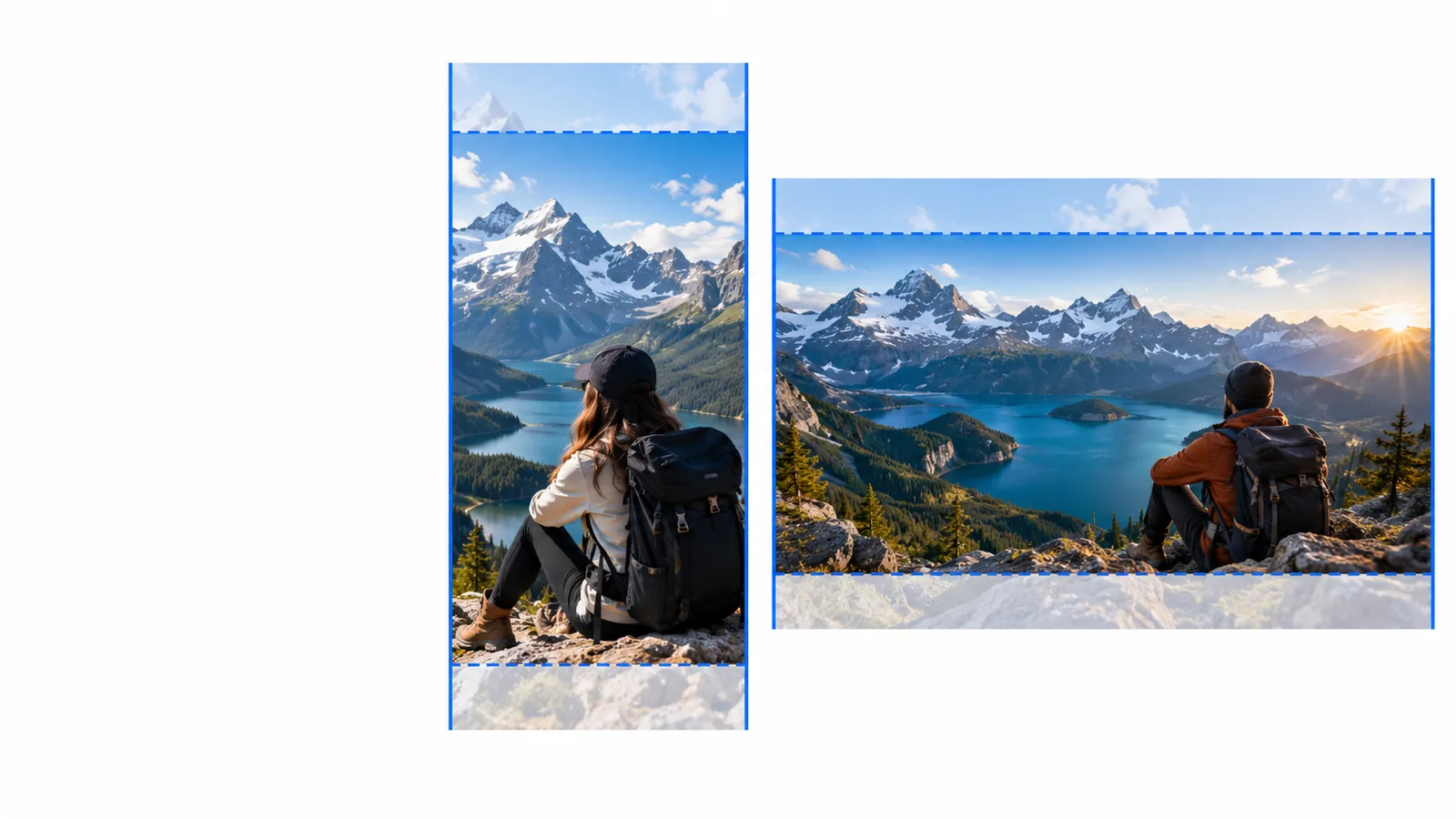
The position of the unwanted footage determines whether one trim is enough or you need two cut points.
A shaky moment interrupts an otherwise useful shot.
Mark both sides of the shaky section, then keep the two usable pieces in sequence.
How can I trim a video into clips?Recording starts several seconds before the action.
Move the opening trim point forward; no middle cut is needed.
How do I cut a part of a video on my iPhone?A pause falls between two answers that should remain.
Split before and after the pause, remove it, then listen across the join.
cut video editorThe final seconds contain an accidental camera movement.
Trim the ending and review where the new last frame lands.
video trimmerTrimming changes an outside boundary. Removing a section from the middle changes the sequence itself.
Trim an end
Remove a middle section
Trim an end
Before the first kept frame or after the last
Remove a middle section
Between two parts you want to keep
Trim an end
One new start or end point
Remove a middle section
A start and an end for the unwanted section
Trim an end
One continuous portion
Remove a middle section
Two portions brought together
Trim an end
None
Remove a middle section
One join where the kept portions meet
Trim an end
Listen at the new beginning or ending
Remove a middle section
Listen through the join for an abrupt change
Trim an end
Cutting off the first word or final action
Remove a middle section
Leaving a stray frame or shortening a sentence
A shorter result cannot retain the removed moment. It may also lose context or sound that overlaps your cut points.
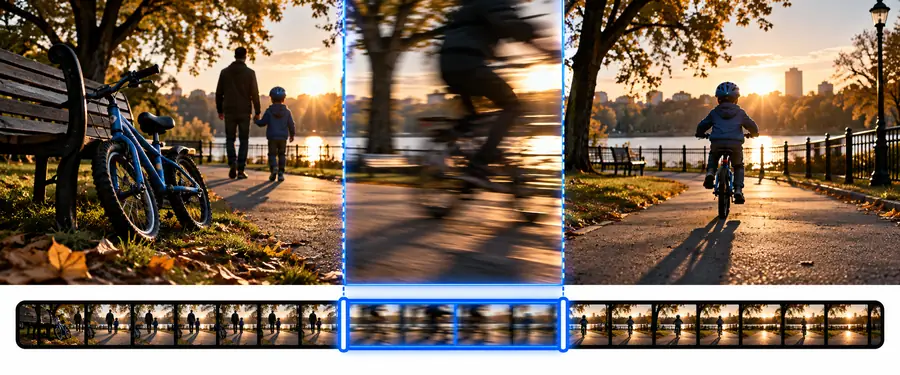
 Before removal
After removal
Before removal
After removal
Illustrative comparison, not a frame-accurate preview of an exported video. Check the actual footage and audio before keeping the result.
If the two kept pieces need separate outputs rather than one continuous video, plan that before making the cuts.
Cutvideo can explain the decision, but this page cannot inspect your footage or guarantee that another tool will preserve every detail.
Removing a reaction, explanation, or establishing shot may make the remaining action confusing.
WorkaroundWatch the whole passage before committing and keep a copy of the original.
Speech, music, and background noise can continue across the frames you intend to remove.
WorkaroundPlay through the join with sound on and adjust the cut points if a word or beat is clipped.
An editing tool may re-encode the result, changing quality, file size, or compatibility.
WorkaroundInspect the available export settings and compare the saved result with your source.
These are editing decisions rather than promises about a particular interface. Use the equivalent controls available in your chosen tool.
Play the source and note the last frame to keep before the unwanted section and the first frame to keep after it.
For an end, trim the boundary. For a middle section, split at both boundaries, remove the segment, and bring the kept parts together.
Replay several seconds on each side. Look for a flash of unwanted footage and listen for clipped speech or a sudden audio jump.
Play the exported result from beginning to end. Confirm that the intended section is gone, both kept moments are present, and the picture and audio make sense at the join. If the result feels abrupt, revisit the cut points using your original footage.
Plan my cutIf the unwanted part is at the beginning or end, trim that edge. If it is in the middle, place a cut on either side, remove the section between them, and check the new join before saving.
Yes, if your editor supports splitting or cutting a timeline at two points. Keep the footage before the first cut and after the second, then check that both portions appear in the intended order.
Listen before and after the proposed cut rather than judging by picture alone. Adjust the boundaries if they clip a word or create a distracting sound change.
Play through the edit at normal speed and inspect the frames immediately around the join. Then watch the saved video too: the export, not the timeline preview, is the result you will share.