Interview editor
The strongest answer sits between a long introduction and a follow-up question.
Keep the complete answer as one clip, including enough context to make sense on its own.
How do I remove an unwanted part of a video?To turn one recording into several useful clips, mark where each moment starts and ends. Cutting the opening and ending of a video is different from separating multiple moments in the middle.
A trim keeps a selected range; a split creates boundaries between ranges. To make several clips from one recording, you may need both operations.

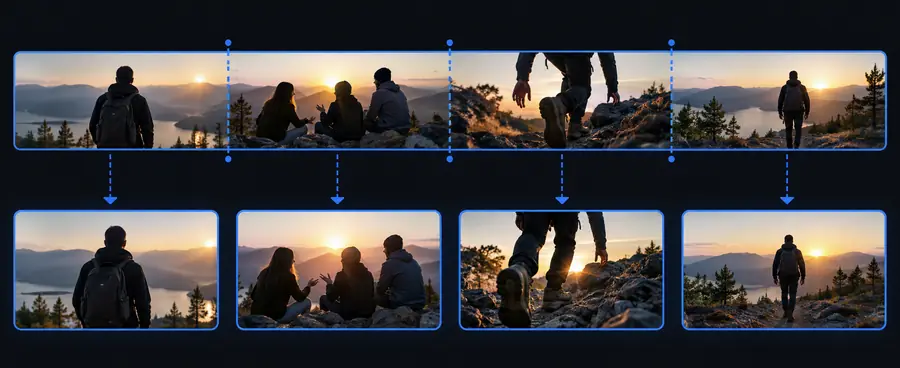 Source recording
Selected moment
Source recording
Selected moment
These illustrations explain the workflow; the slider does not preview a processed version of the pictured video.
Moving from one long recording to separate clips makes each selected moment easier to review and place in a larger edit. Choose boundaries based on complete actions or sentences, not equal durations.
The strongest answer sits between a long introduction and a follow-up question.
Keep the complete answer as one clip, including enough context to make sense on its own.
How do I remove an unwanted part of a video?A phone recording contains several attempts at the same explanation.
Mark the start and end of each usable attempt before deciding which clips to keep.
How to cut for beginners?A longer recording contains distinct moments for future videos.
Save each complete moment separately, then review it in the context of the intended upload.
cut video for youtubeBefore choosing a workflow, decide whether you need one shorter file or multiple separate files. The required output changes where you place boundaries and how you check the result.
Trim one range
Make separate clips
Trim one range
One source recording
Make separate clips
One source recording
Trim one range
One start point and one end point
Make separate clips
A start and end point for every clip
Trim one range
Excluded when it falls outside the keep range
Make separate clips
Can become another clip or be left out
Trim one range
One shorter video
Make separate clips
Several independently usable videos
Trim one range
One descriptive filename
Make separate clips
A distinct name for each exported segment
Trim one range
Watch the beginning and ending
Make separate clips
Watch both boundaries of every clip
The table above describes the editing decisions, not a guarantee that every tool exports multiple files at once. These related guides cover adjacent decisions.
Selecting a start and end does not necessarily export every other segment as its own clip.
WorkaroundRepeat the selection for each keep range, or use an editor with a separate split-and-export workflow.
Starting halfway through a sentence may leave a technically clean clip that is confusing to watch.
WorkaroundPlay several seconds around each boundary before committing to it.
Export settings and re-encoding can change the resulting video's quality or file size.
WorkaroundReview an exported sample and check the available settings before processing the rest.
List the moments worth keeping, mark their approximate boundaries, and check whether the destination supports the editing and export steps you need. Cutvideo can help you move from a clear plan to the available video workflow.
Explore video toolsIdentify each moment you want to keep and note its start and end. Select or split those ranges in a video editor, export the clips as separate files if the editor supports that workflow, and watch each result from beginning to end.
Not quite. Trimming usually shortens a video to a selected range, while splitting places boundaries within a recording. Making multiple independent clips may require splitting, repeated trims, or separate exports.
Start just before the relevant action or complete sentence, and end after it finishes. Play across both boundaries to check that the clip does not begin abruptly or cut off its final word.
Keep an untouched copy of the source until you have reviewed every exported clip. That lets you adjust a boundary later without relying on a previously shortened version.